How do I make every broadcast say something different?
Use a data dictionary variable, and the system automatically picks one of several messages each time it sends. Setup takes just three steps.
1Create a data dictionary
Open "Data dictionary" and click "New dictionary". Name the dictionary and its variable however you like, set the selection mode to either Random or In order, then save.
The name is only for your own reference. The variable name must start with a lowercase letter and can contain only lowercase letters, digits and underscores. In the screenshot the variable name is tgtui, so you'd write it as {tgtui}.
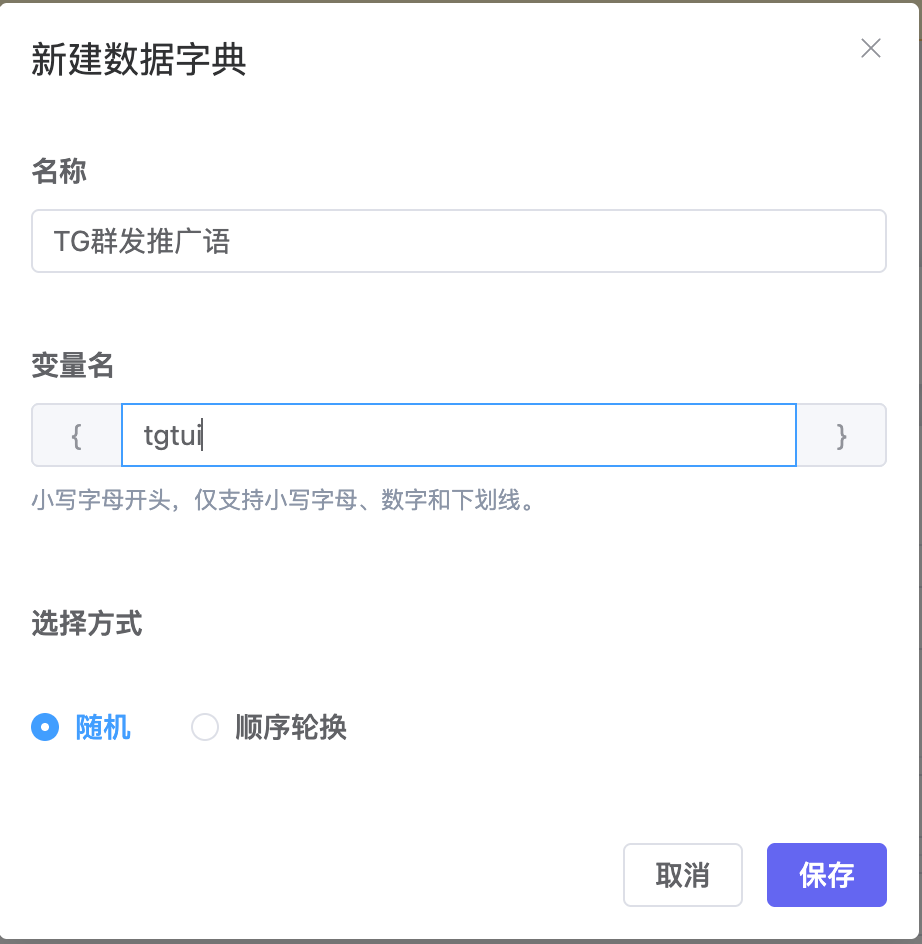
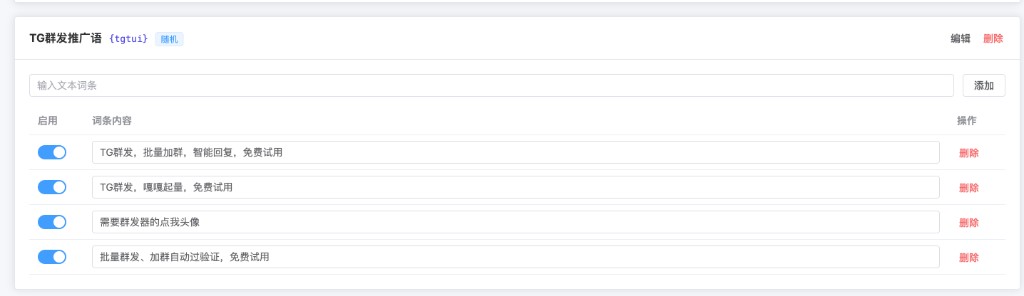
2Add entries to the dictionary
In the dictionary you just created, add the messages you want to rotate one at a time, and keep the entries enabled. Each entry is one message that may be sent.
"In order" example
Say you have two messages, A and B, and three targets. The system staggers its choices based on the task's round and the order of the targets:
Round 1: target 1 gets A, target 2 gets B, target 3 gets A.
Round 2: target 1 gets B, target 2 gets A, target 3 gets B.
This way each target rotates through A, B, A, B regardless of how many targets there are, and different targets can receive different content within the same round.
3Add the variable to your broadcast content
Create a new group broadcast task and enter the variable you just created, e.g. {tgtui}, in the "Text" content. Then choose your targets and save the task as usual.
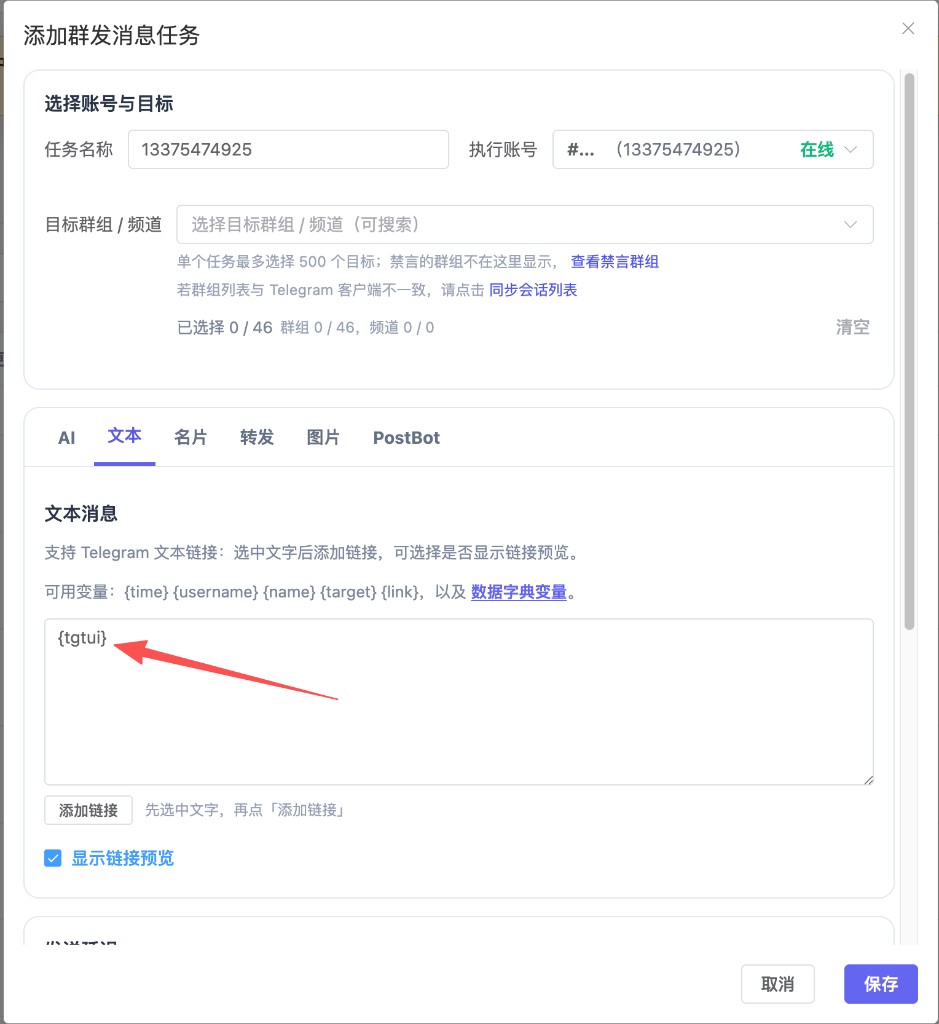
Every time the system sends, it replaces {tgtui} with one enabled entry: picked at random with "Random", or cycled through in sequence with "In order".