Open PostBot and create a new post
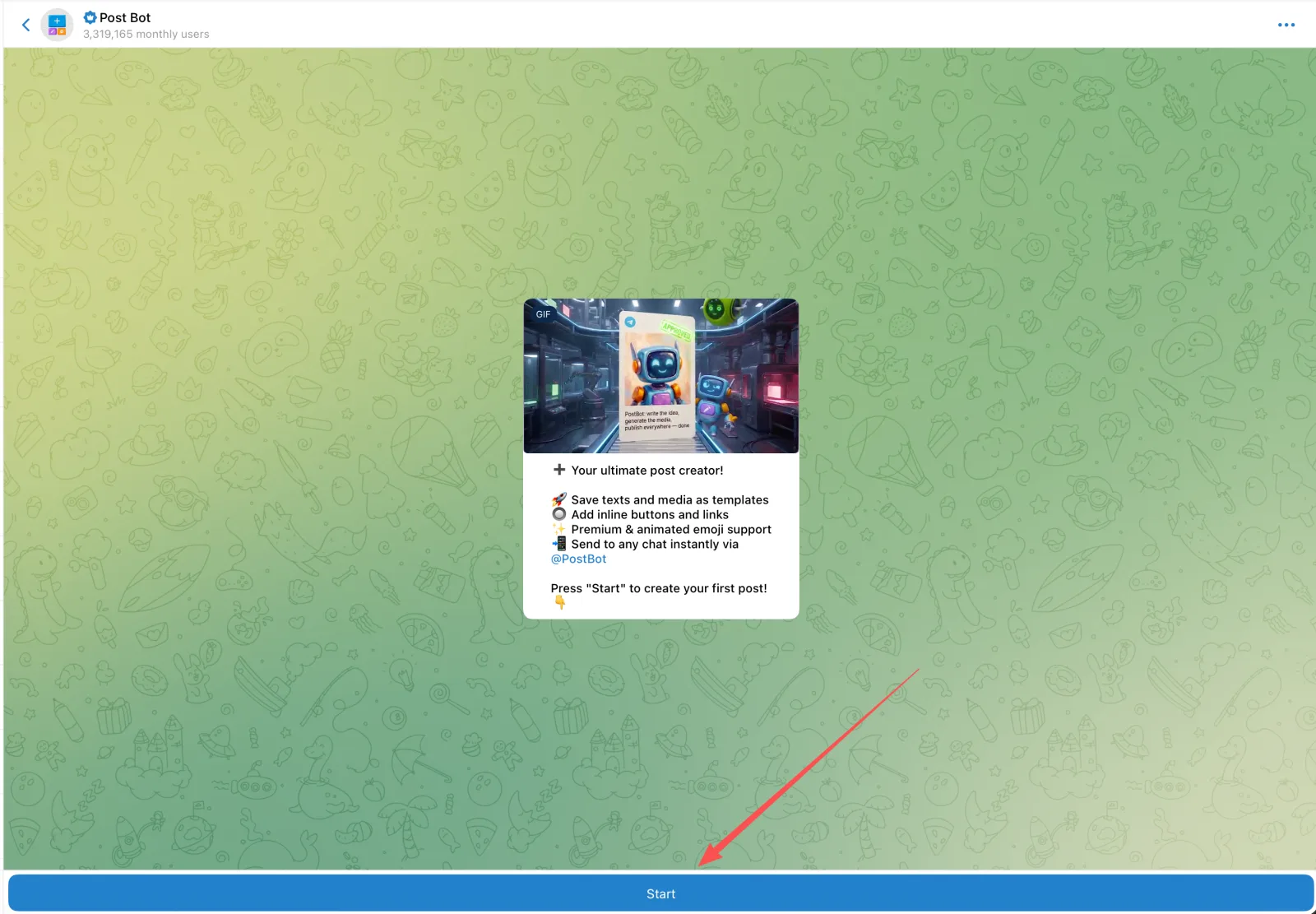
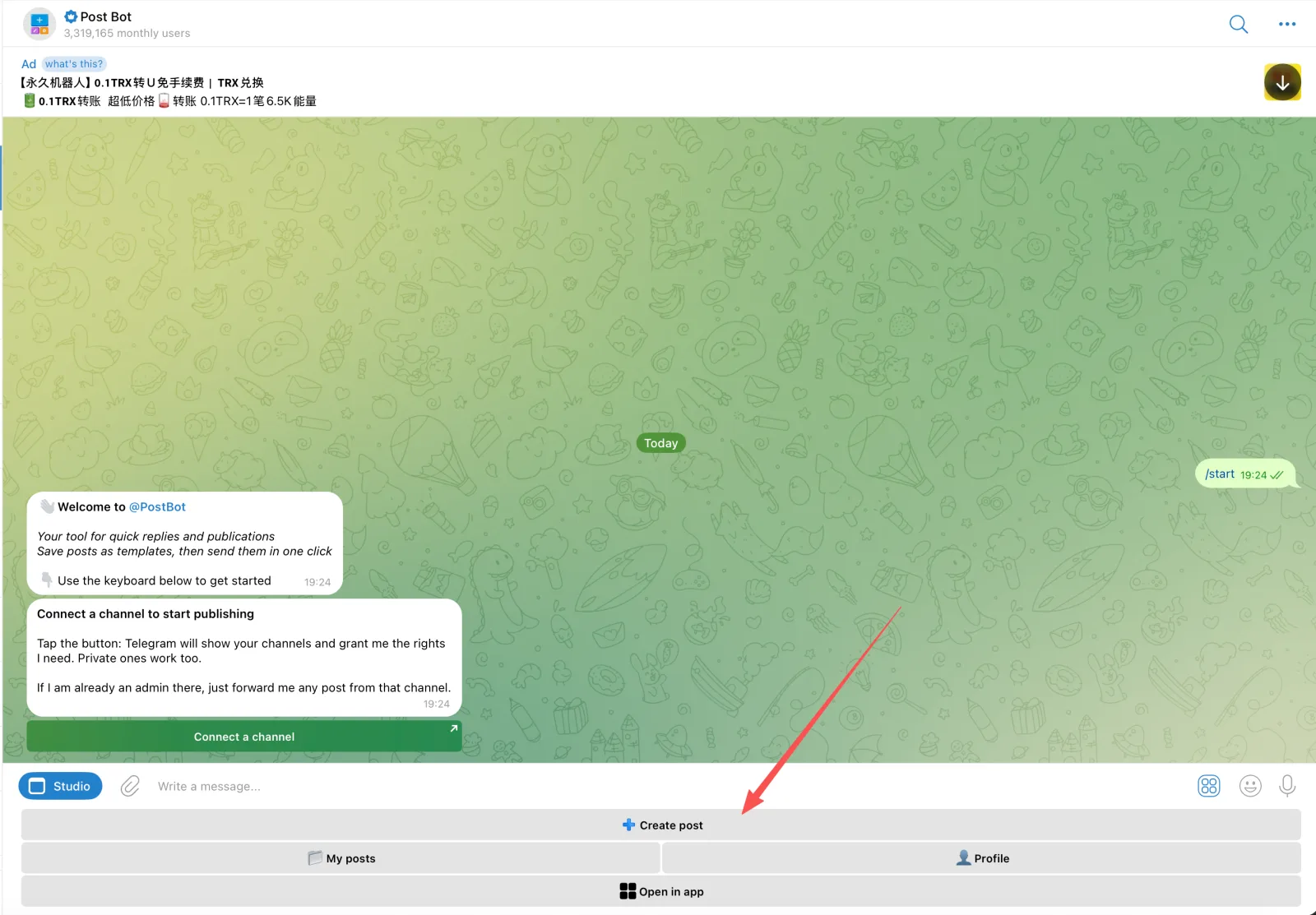
Open @PostBot in Telegram, tap Start at the bottom, then tap Create post.
Choose an image
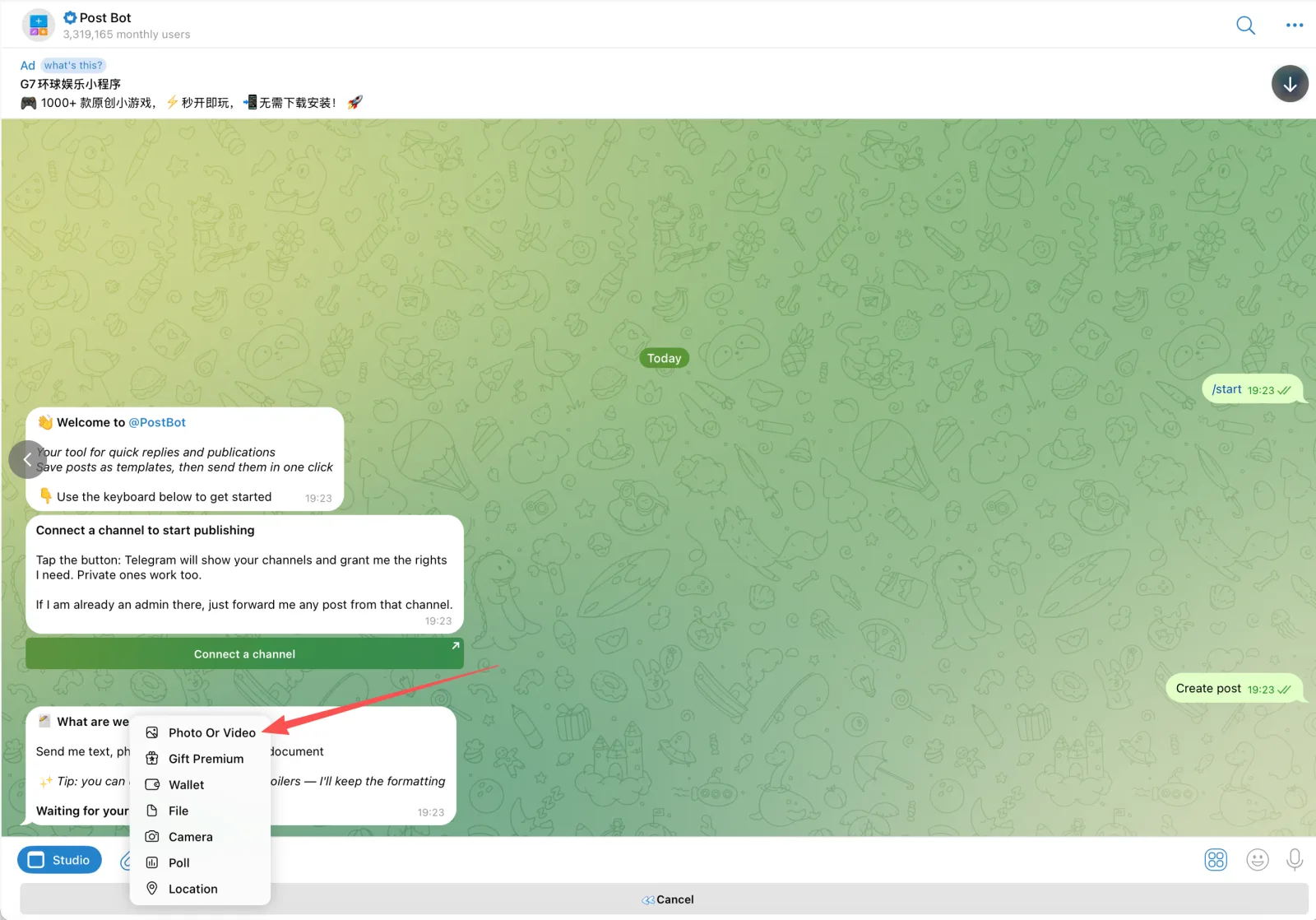
Tap the attachment button next to the message box, choose Photo Or Video, then send the image you want in the post.
Add the post text
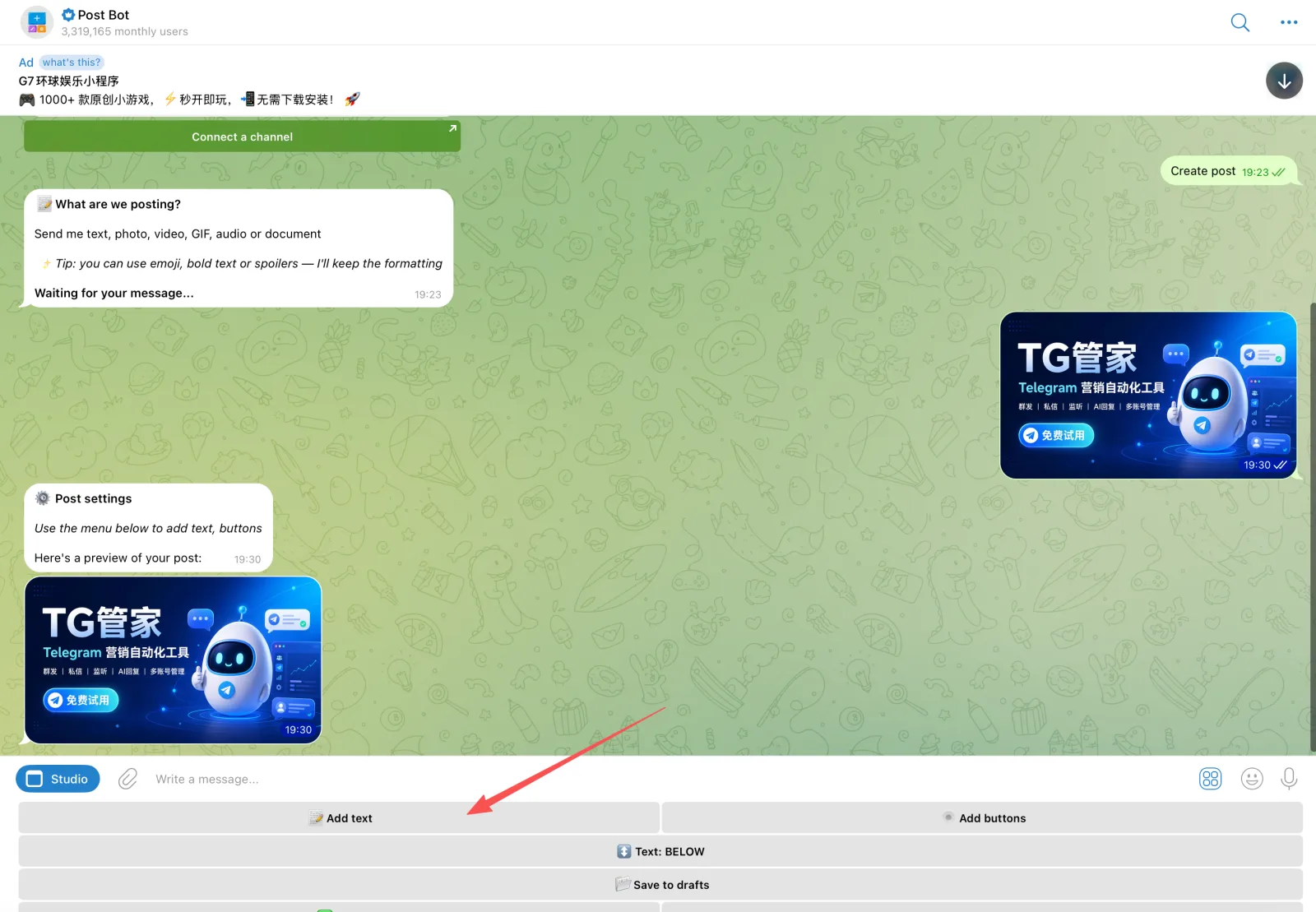
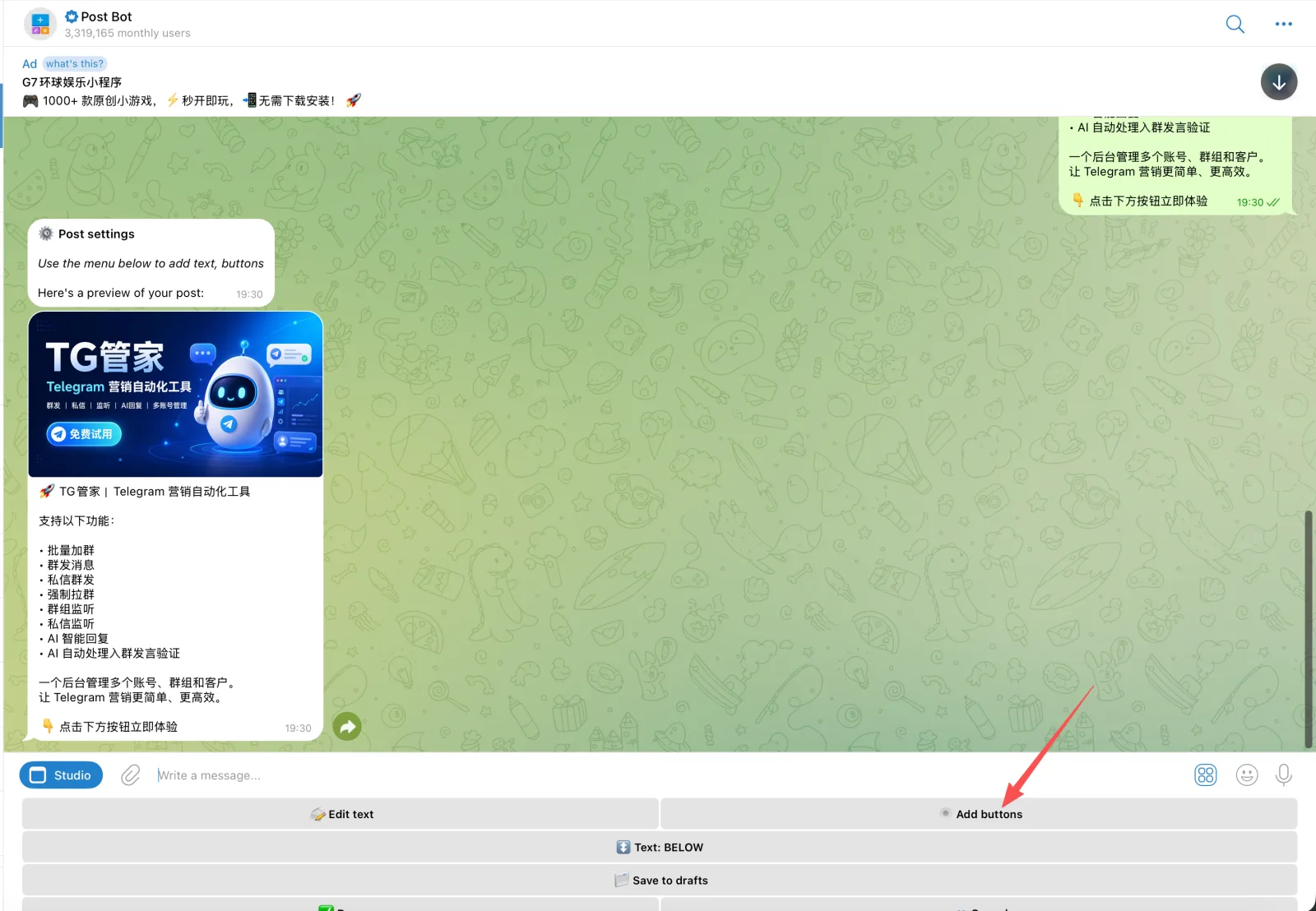
Once the image is sent, tap Add text and send the bot your headline, description and call to action. You'll then return to the post preview.
Add button text and links
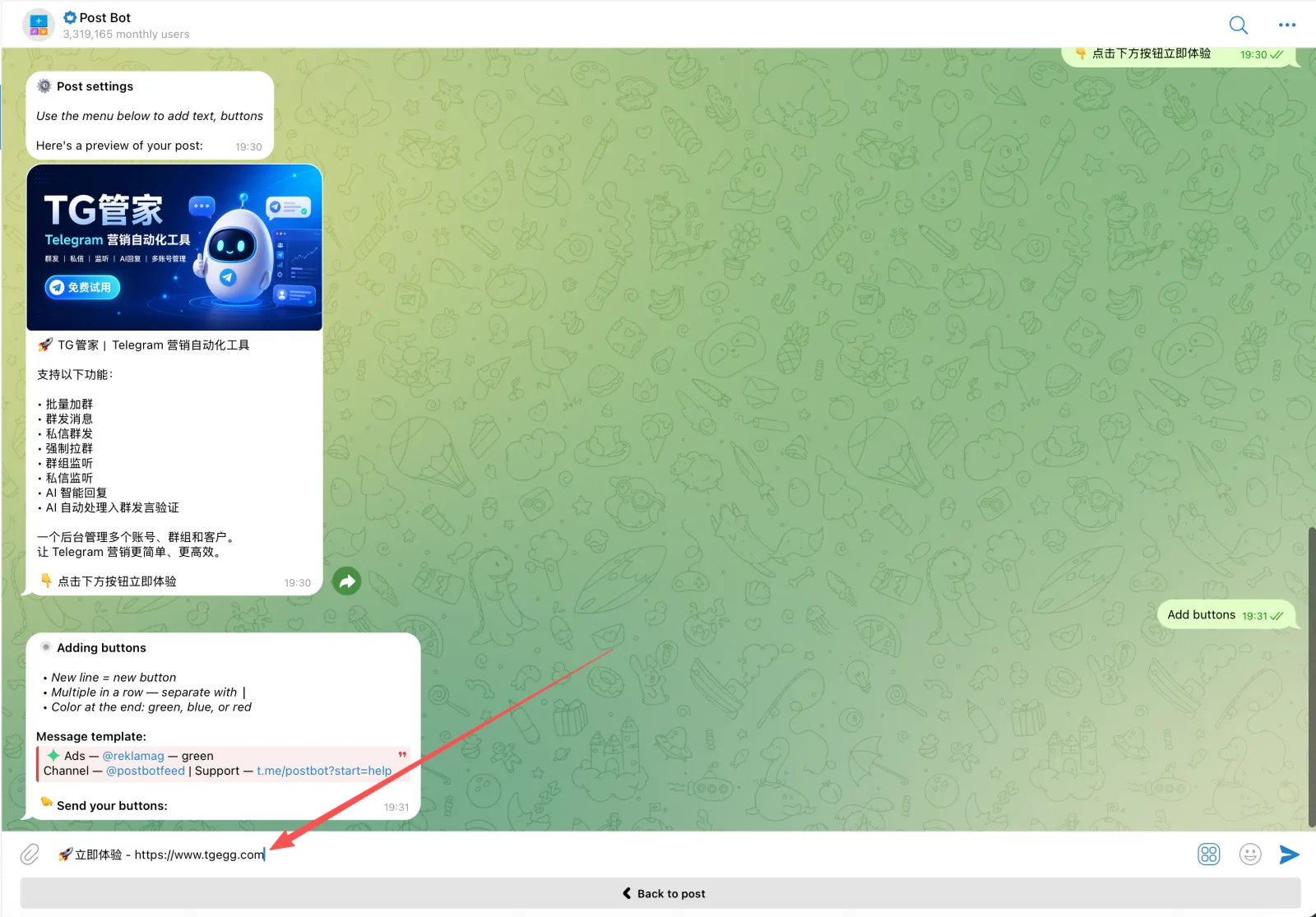
Tap Add buttons, then send them in the format "Button text - link". Links must include the full https://.
|.Check the preview and finish
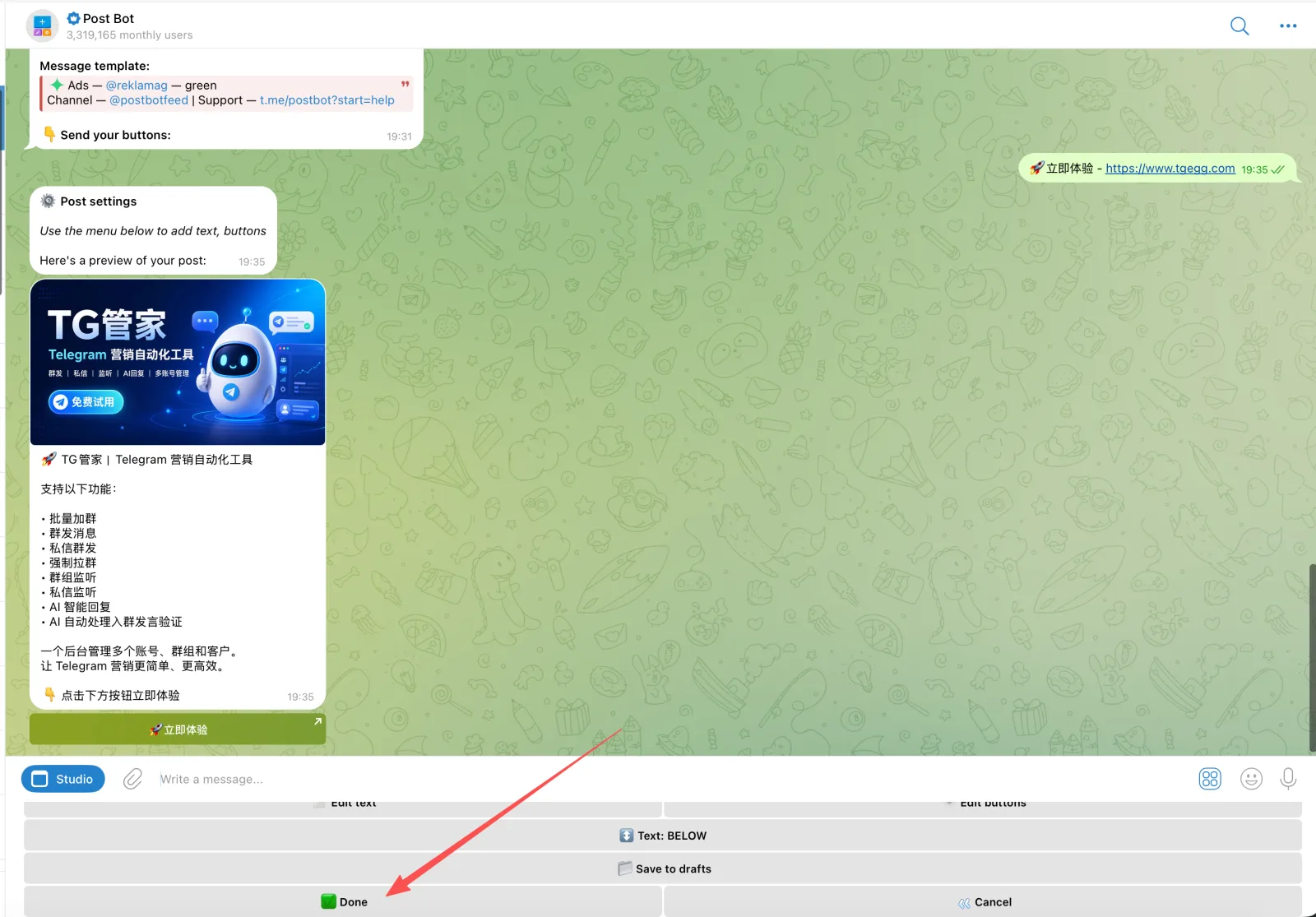
Once the image, text and buttons all look right, tap Done at the bottom. To change anything first, tap Edit text or Edit buttons.
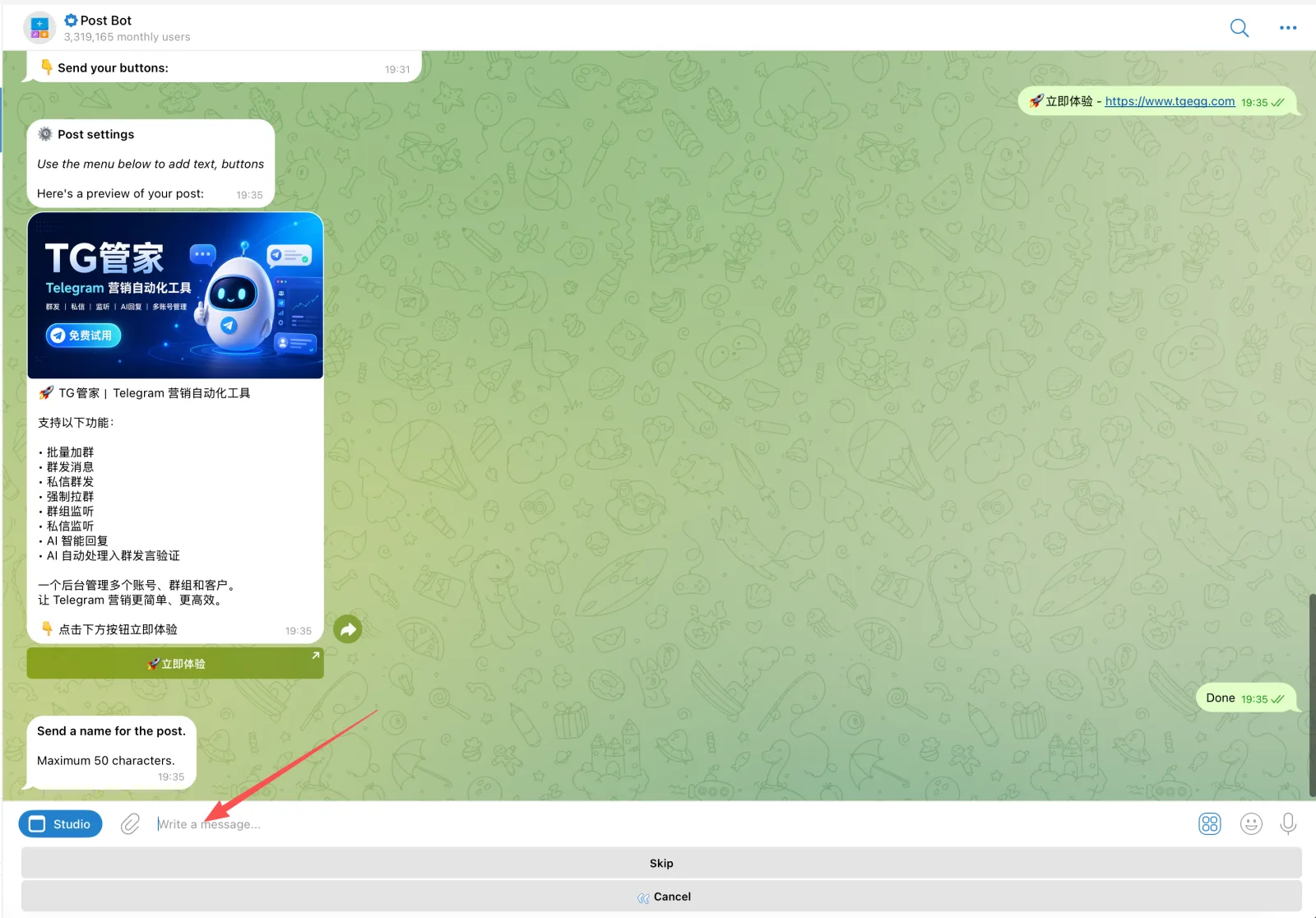
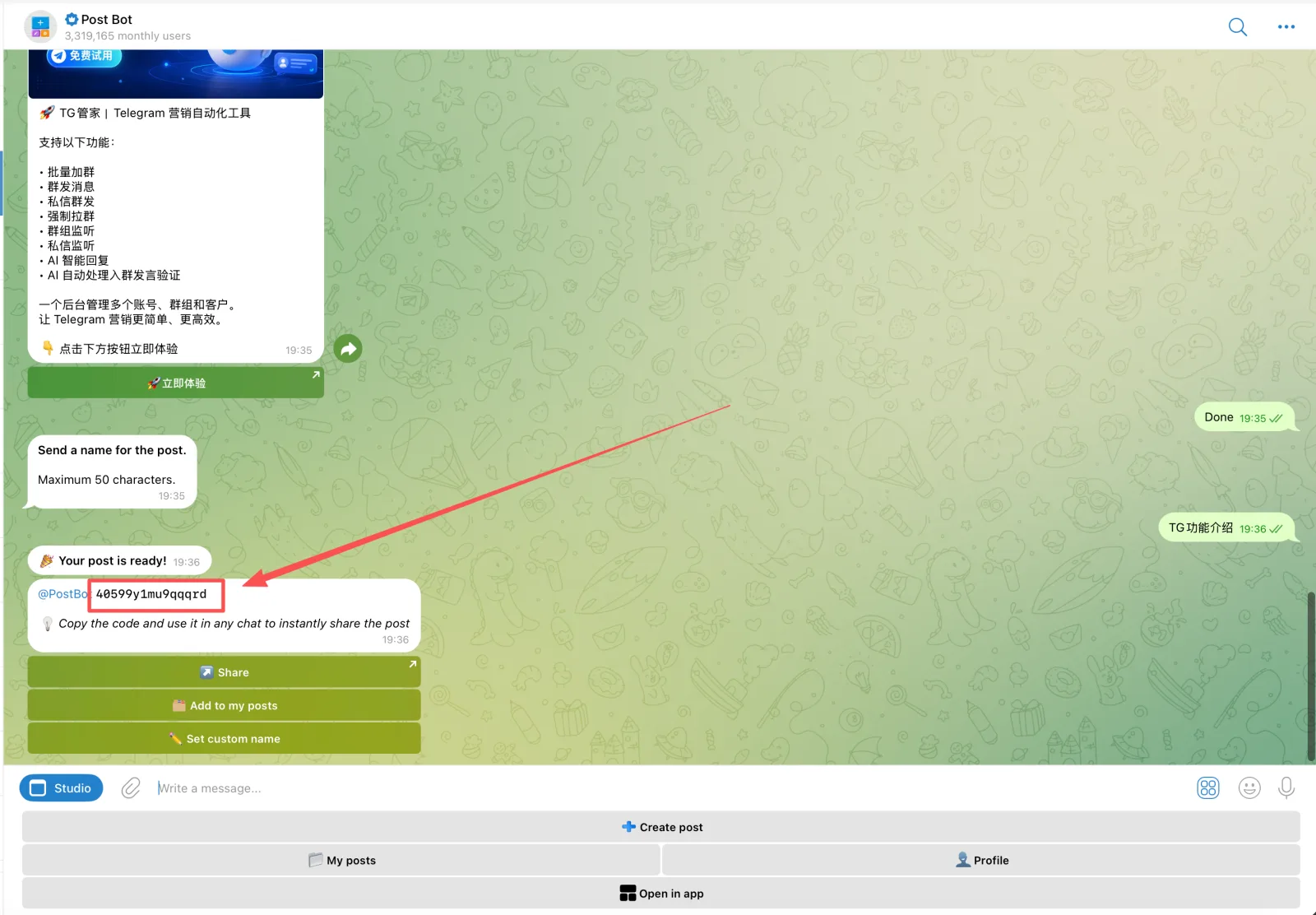
Give the post any name
The name is only there to help you recognize the post. Anything easy to remember works, such as "Product intro" or "September promo".
Copy the code into TGEgg
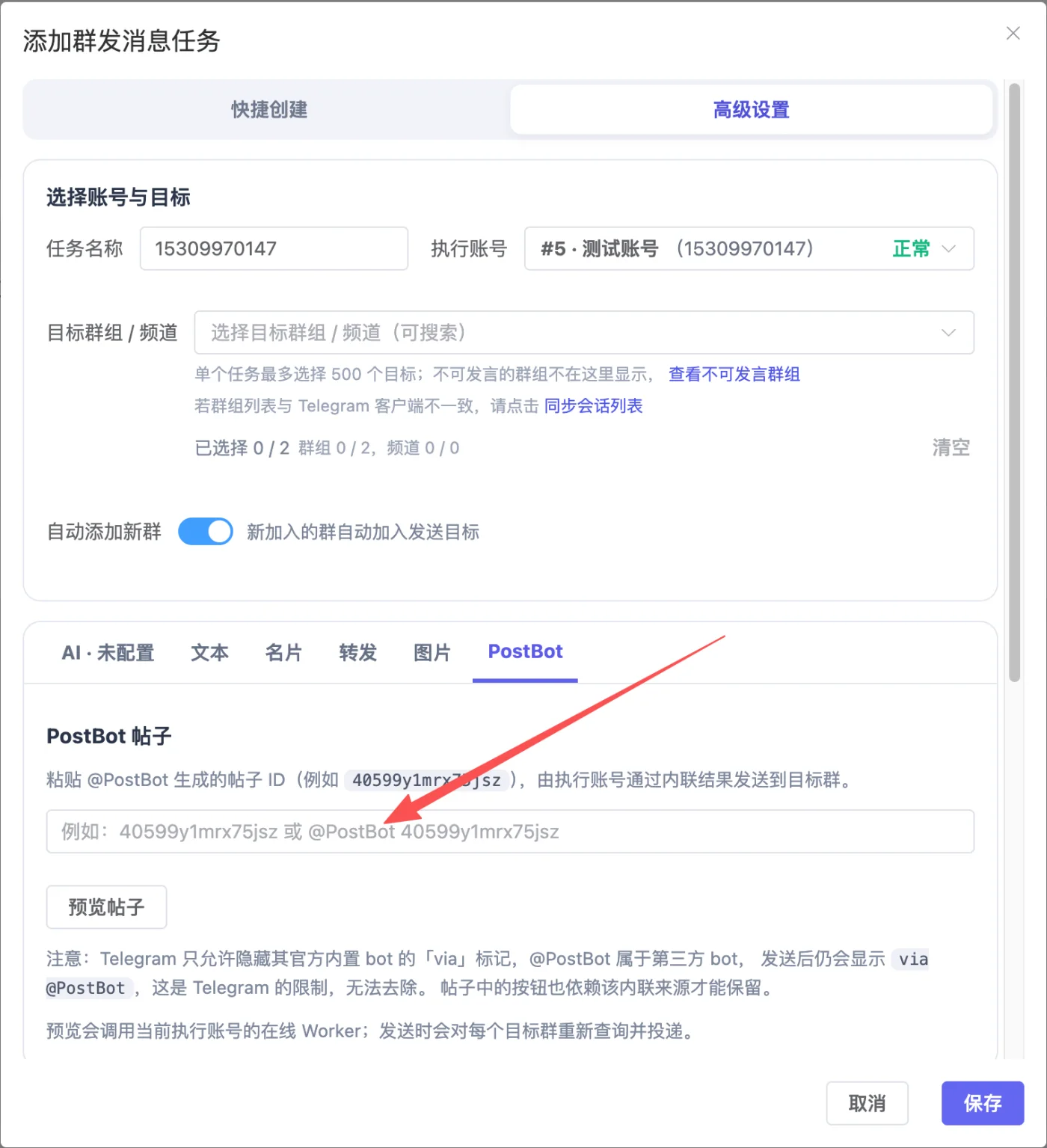
Once the post is created, copy the code after @PostBot. Back in TGEgg, create a new group broadcast task, choose PostBot under "Advanced settings", paste the code and save.
FAQ
Can I copy just the code, without @PostBot?
Yes. TGEgg accepts the bare post code as well as the full @PostBot code format.
Why does "via @PostBot" appear on sent messages?
@PostBot is a third-party bot, and Telegram doesn't allow hiding the "via" label of third-party bots. This is a platform restriction and can't be removed.
What if the image, text or buttons are wrong?
Before tapping Done, use Edit text or Edit buttons to fix them. Finished posts can also be managed later under My posts in PostBot.